
Once an application has been approved for funding and a notice has been received confirming the availability of the Contribution Agreement on the FedNor Portal, it can be retrieved in the Projects section of the FedNor Portal.
Select the "Projects" link located on the left navigation panel and then select "Manage my projects".

On the Manage my projects page, your organization will automatically pre-populate the 'Organization' box, or you may choose your registered organization from the drop-down list. Once you select your organization, the page will populate with a list of active projects.
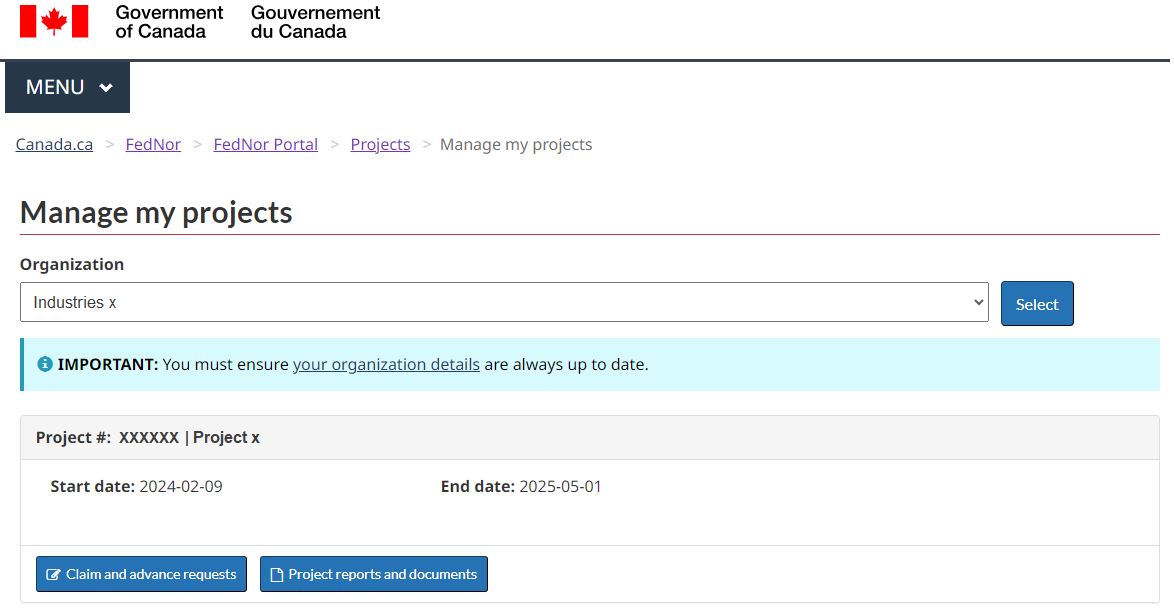
Under the project that has been approved for funding, select the "Project reports and documents" box.

Downloading the Contribution Agreement
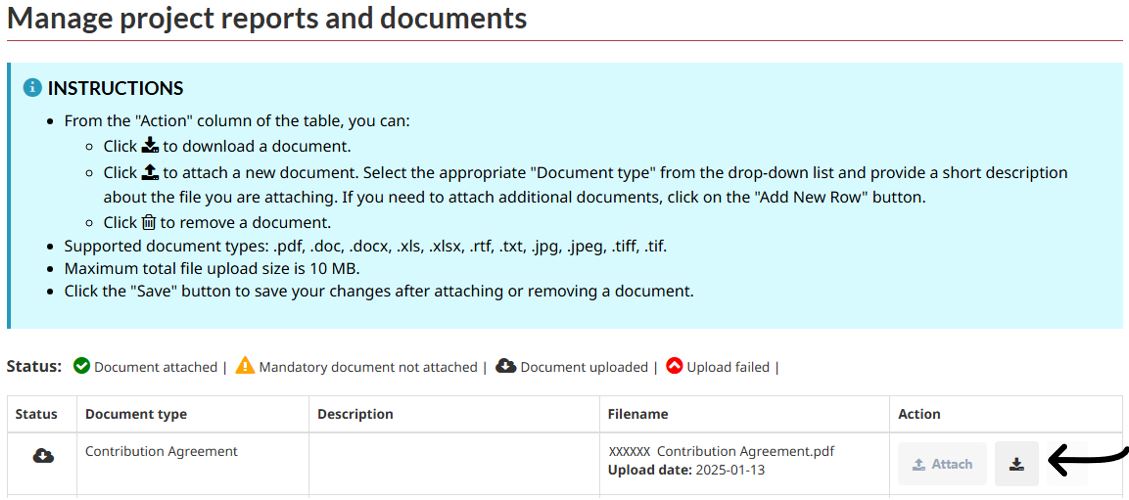
On the Manage project reports and documents page, scroll down to the documents table to find the document with the "Contribution Agreement" Document type. Select the download icon under the "Action" column.
Uploading the Signed Contribution Agreement
On the Manage project reports and documents page, instructions on how to upload documents are provided in the blue Information box. Use the "Add New Row" button to add a row in the documents table.
In the documents table, upload a scanned copy of the wet-signed Contribution Agreement (in its entirety) by using the "Attach" button. In the Document type column, use the drop-down list to select "Contribution Agreement".

Select the "Save" button to save the uploaded Contribution Agreement, then use the "Refresh" button to refresh the table. A green checkmark will appear in the Status column if the upload is successful.
Once a document has been uploaded and the page has been saved, it cannot be deleted. When finished on the page, select the "Exit" button.