
Once an application has been approved for funding and a Contribution Agreement has been signed by both parties, the project will be available in the Projects section of the FedNor Portal.
Select on the “Projects” link located on the left navigation panel and then select “Manage my projects”.
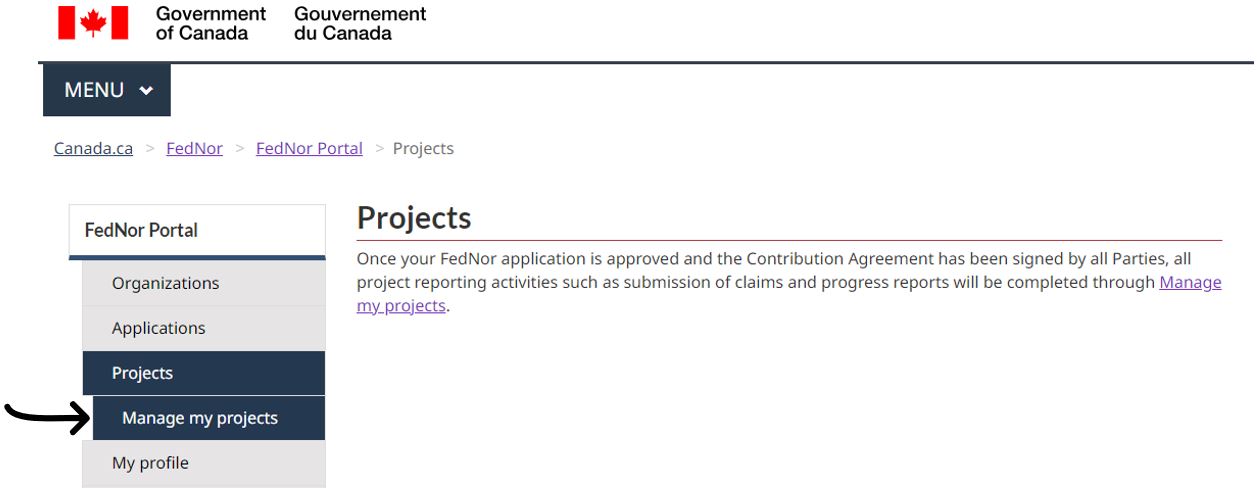
On the Manage my projects page, your organization will automatically pre-populate the ‘Organization’ box, or you may choose your registered organization from the drop-down list. Once you select your organization, the page will populate with a list of active projects.

Your organization’s financial contact will receive an initial claims package via email with instructions regarding the project’s first claim and/or advance request and project reporting requirements.
Under “Manage my Projects”, select the “Claim and advance requests” box located below the selected project.

The Claims and Advance requests tables display all draft and submitted claims and/or advances requested for the project, if applicable. Only projects that are eligible for advances will have the Advance requests option. From this table, you can review submitted claims/advance requests or access a draft claim.
To start a new claim, select the “New claim” button or, should advances be authorized to your organization, the “New claim or advance request” button.
On this page
New claim and/or advance request
On the Add or update claim and/or advance request page, you can update or submit a draft claim or advance request, or initiate a new claim or advance request by entering information and uploading supporting documents.
Claim
- Claim type: select “Initial claim” for the first claim and “Progress claim” for all other claims except for the final claim, where you should select “Final claim”.
- Period covered: identify the start (“from”) and end (“to”) dates of the claim period. The claim period should be as specified by FedNor in email correspondence. For projects with multiple claims, the start date of one claim period should follow directly after the end date of the previous claim period (e.g., Claim 1 covers April 1 to September 30, so Claim 2 covers October 1 to March 31).
- Total costs incurred: enter the total dollar amount of the eligible supported project costs you are claiming. If you are unsure about what costs are eligible and supported, refer to your Contribution Agreement or consult your FedNor Officer.
Advance request
- Period covered: identify the start (“from”) and end (“to”) dates of the advance request period. The advance request period should be as specified by FedNor in the email correspondence. Ensure that the start date (“from”) is for a future date; advances cannot be issued for a date that has already occurred.
- Total advance requested: enter the total dollar amount of the advance requested. The amount requested should be supported by a Cost Forecast or equivalent document uploaded under Supporting Documents. For example, if you are requesting a six-month advance, then the advance amount requested should equal FedNor’s percentage contribution of the eligible supported project costs forecasted to be spent in the six-month period.
Supporting documents
In the Supporting documents table, upload documents to support your claim and/or advance request. Instructions on how to upload documents are provided in the blue Information box. Use the “Add New Row” button to add more documents as needed. A green checkmark will appear in the Status column if the upload is successful.
For each document that is uploaded, complete the following:
- Document type: Using the drop-down list, identify the types of documents provided to support your project.
- Description: For each upload, provide a brief description of the document.
Use the “Save” button to save your work. Once an uploaded document is saved, it cannot be deleted. Note that a claim/advance request cannot be submitted without an attached Payment Workbook.
When the claim and/or advance request is complete, select the “Review and submit” button to submit your claim to FedNor for review and processing. If you are not ready to submit the claim and/or advance request, select the “Close” button to return to the Manage claims and advance requests page.
Certification
Read the certification section carefully to ensure that you have the authority to and are able to acknowledge and certify all of the statements on behalf of your organization. To submit the claim, you must have user permissions to submit records assigned by your organization’s Portal Administrator. For more information on user permissions, refer to Managing User Privileges.
Once you have read the certification, select “Submit” to submit the claim and/or advance request, or select “Back to claim/ advance” to return to the Add or update claim page, or select “Close” to return to the Manage claims and advance requests page.